

4 Port HDMI KVM Switch (Keyboard/Video/Mouse Switch) – Switch between Multiple Computers with 1 set of controls (Includes 4 x USB Type C Cables)
The 4 port HDMI/USB KVM is used to connect multiple computers to the same Keyboard, Mouse and HDMI Display e.g. in a server room you will need 1 display, keyboard and mouse only and switch between the different servers or PC’s via the switch to use one set of controls and one display. Adaptive EDID/HDCP decryption, can adapt to a variety of complex application environments. The switch has excellent image processing and transmission capabilities.
Note: Please use a wired keyboard and mouse. Wifi Keyboards and mouse might work but not tested. When indicator light flashes, it means the switch cannot support the input resolution. Please change the resolution on server / PC / Source to one of the supported resolutions below.
Please note this product is supplied with a USB Power cable (Either Micro USB or USB C Depending on what the device requires) and does NOT INCLUDE A 220v to USB Wall Socket Power adapter. The unit must be powered from a nearby USB Port on a HDTV/Projector/Digital Receiver or alternatively a 220v Wall Adapter to 5v USB Charger/Power supply similar to Slimline 5 Volt 2 Amp USB Wall Charger/Power Supply
Sample Diagram of Installation
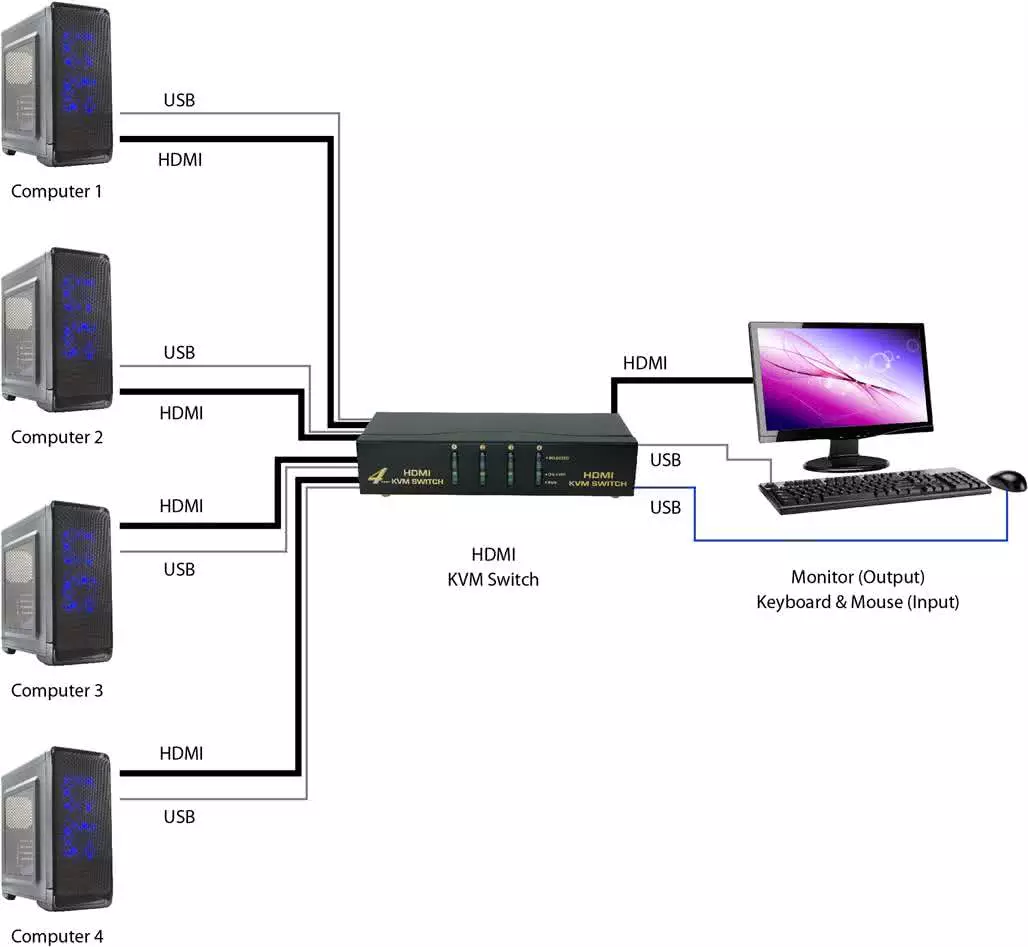
Features:
- 4 Inputs of high-definition video sources and 4x USB interfaces;
- Supports video resolutions up to 4Kx2K@60Hz including lower resolutions like FullHD / 1080p / 720p etc.
- Adaptive EDID/HDCP decryption, able to adapt to a variety of complex application environment;
- USB devices that can be connected : USB mouse, keyboard, printer, camera, etc. Please note Wireless USB Devices may require additional power and not all wireless devices may work with the switch.
- Built-in automatic adjustment system
- Built-in ESD protection system;
- Simple to install, plug and play;
Package contents:
1 x 4-Port HDMI KVM Switch
1 x User Manual
4 x USB Type C To USB Type A Cable
1 x USB DC Type C To USB Type A Power Cable
1 x Remote (linked with cable to unit, using Micro USB to Micro USB)
Note!! HDMI Cables not included. It needs to be purchased separately and we have various lengths available, please email for a specific length. We also have alternative longer USB Cables in-stock which can be purchased separately if the bundled USB Cables too short.


Reviews
There are no reviews yet.